
CONFIGURING APPLE MAIL AND CALENDAR FOR OFFICE 365
- Go to System Preferences => Internet Accounts
- Click on your existing entry for Exchange in the left navigation page. You will know it is the right account if you see your @nvbc.org or gsbc.edu or nvbschools.org email address (as shown below). With this account highlighted, click the minus "-" button in the lower right to delete the account.
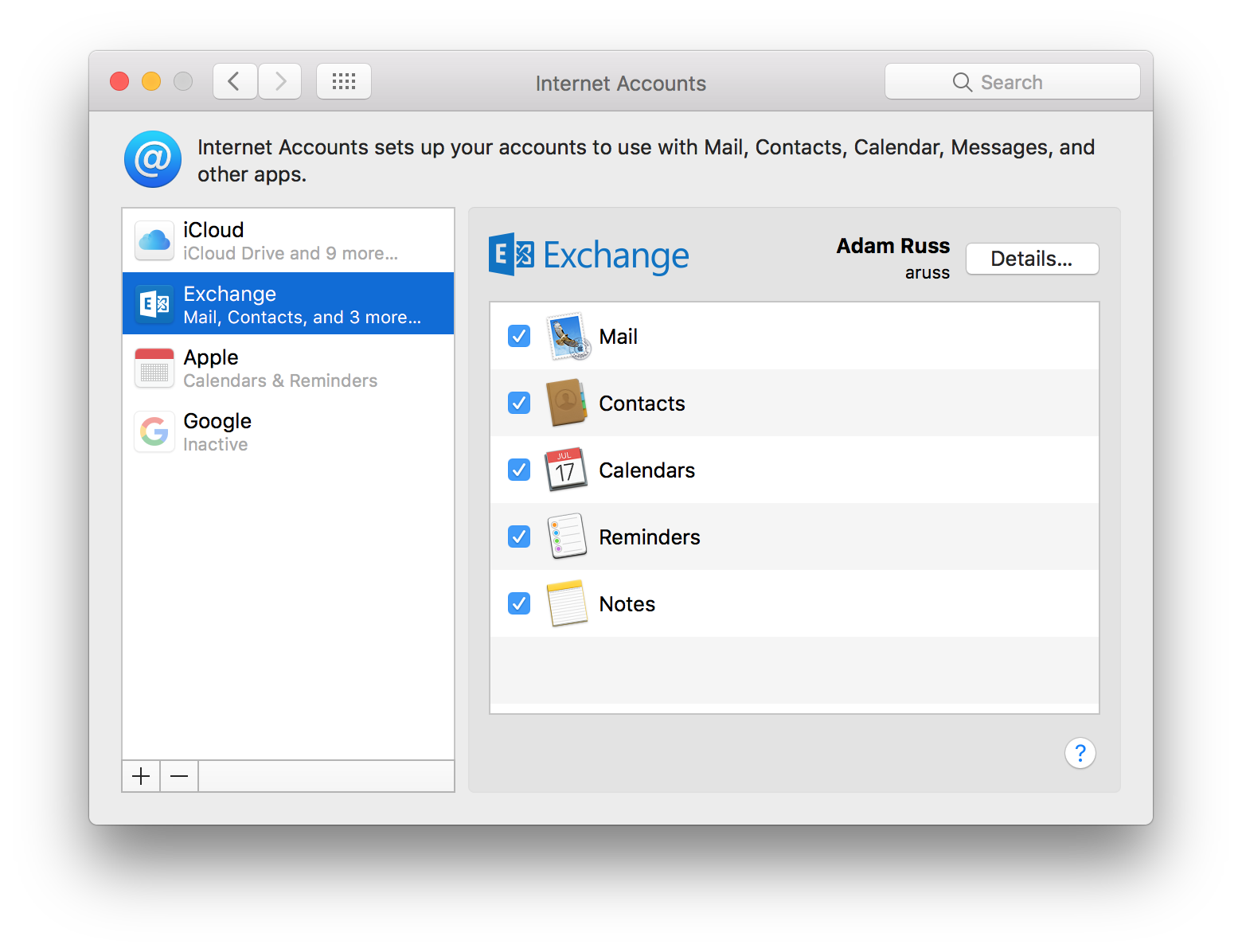
- Depending if you have additional account configured on your system, you may now need to click on the plus "+" button before you get the window below. Click on Exchange.

- Type in your full name, email address, and current password.
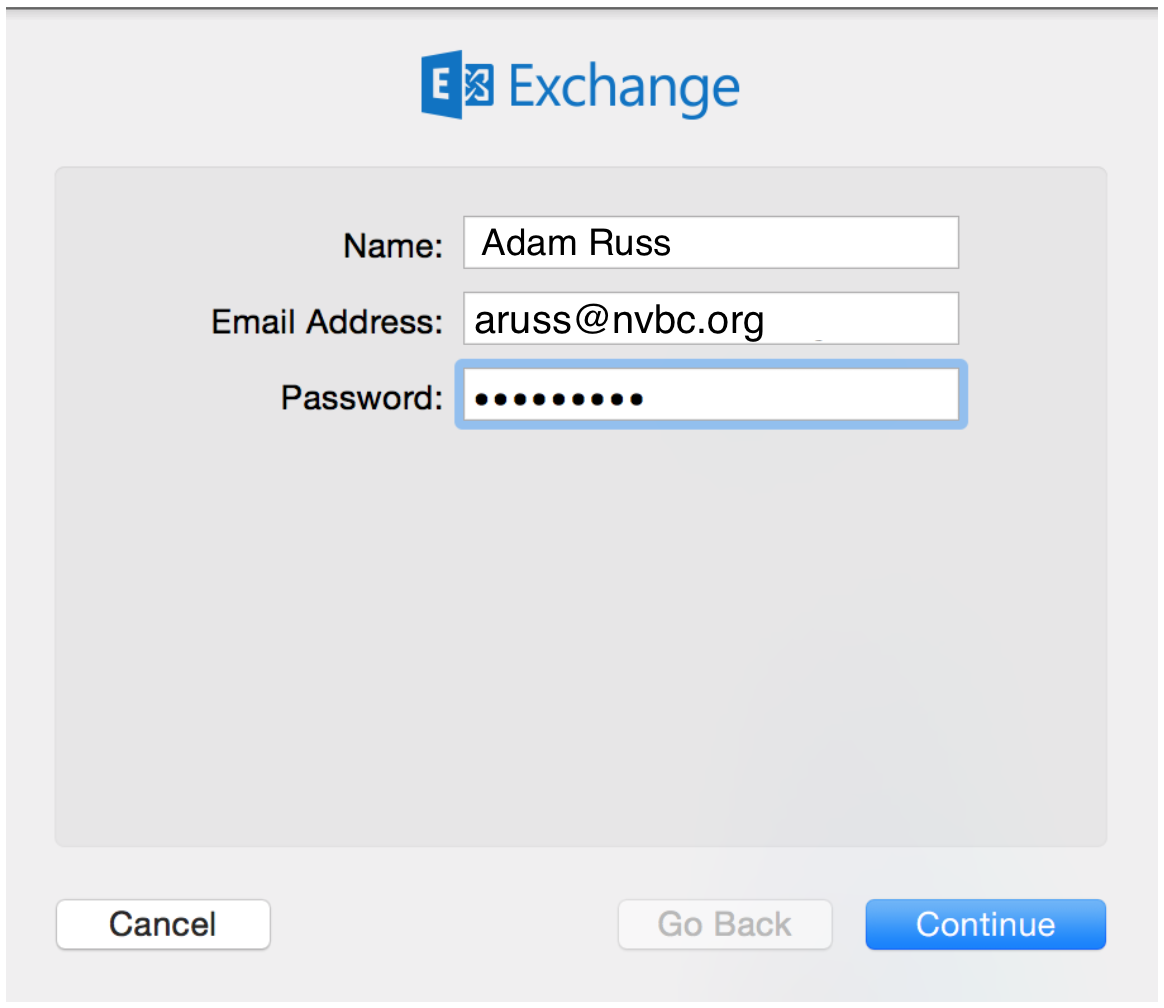
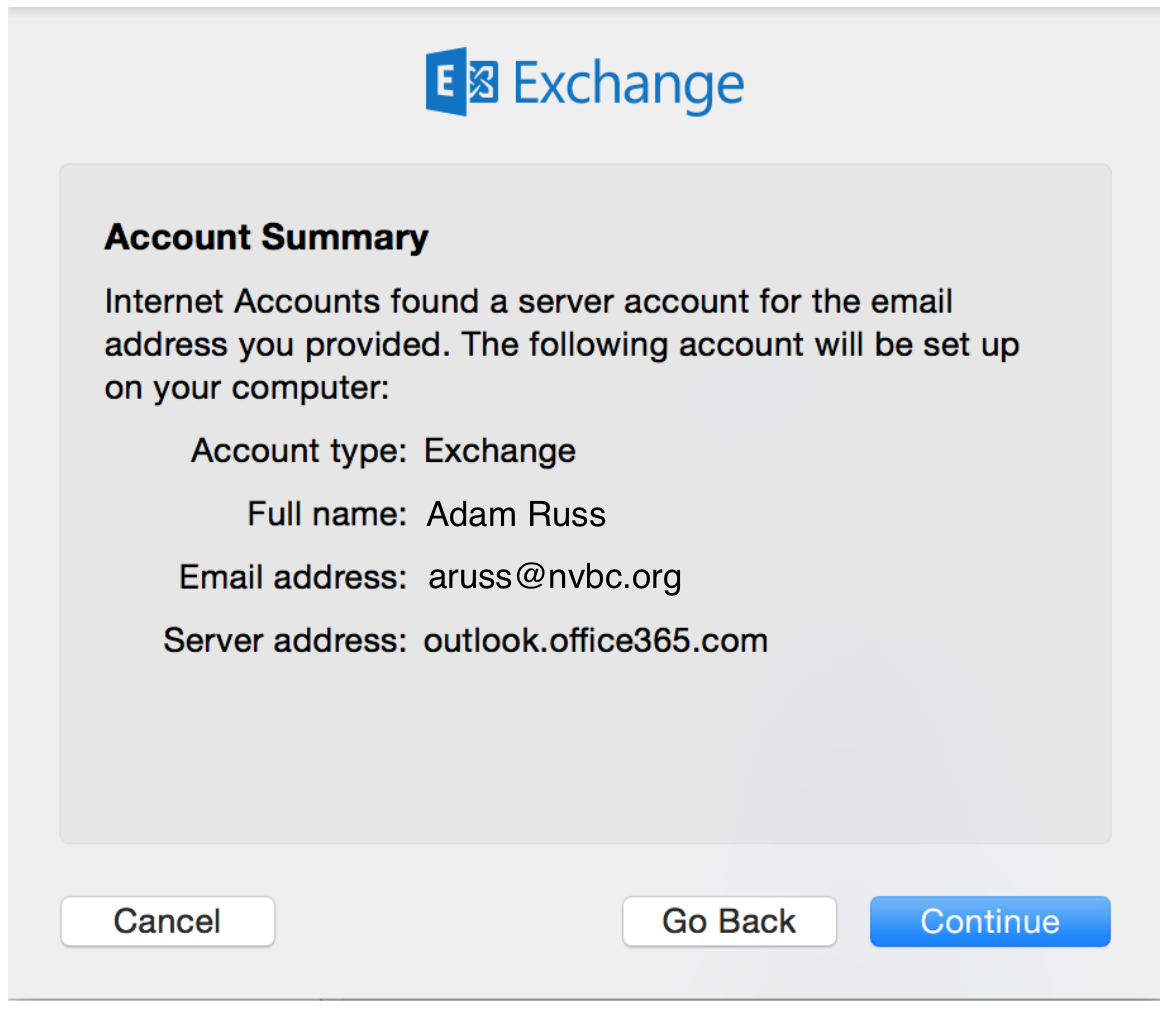
- If you connect successfully to Office 365, you will get the following window. Click Continue.
- On the following screen, ensure all checkboxes are checked, then click Done.
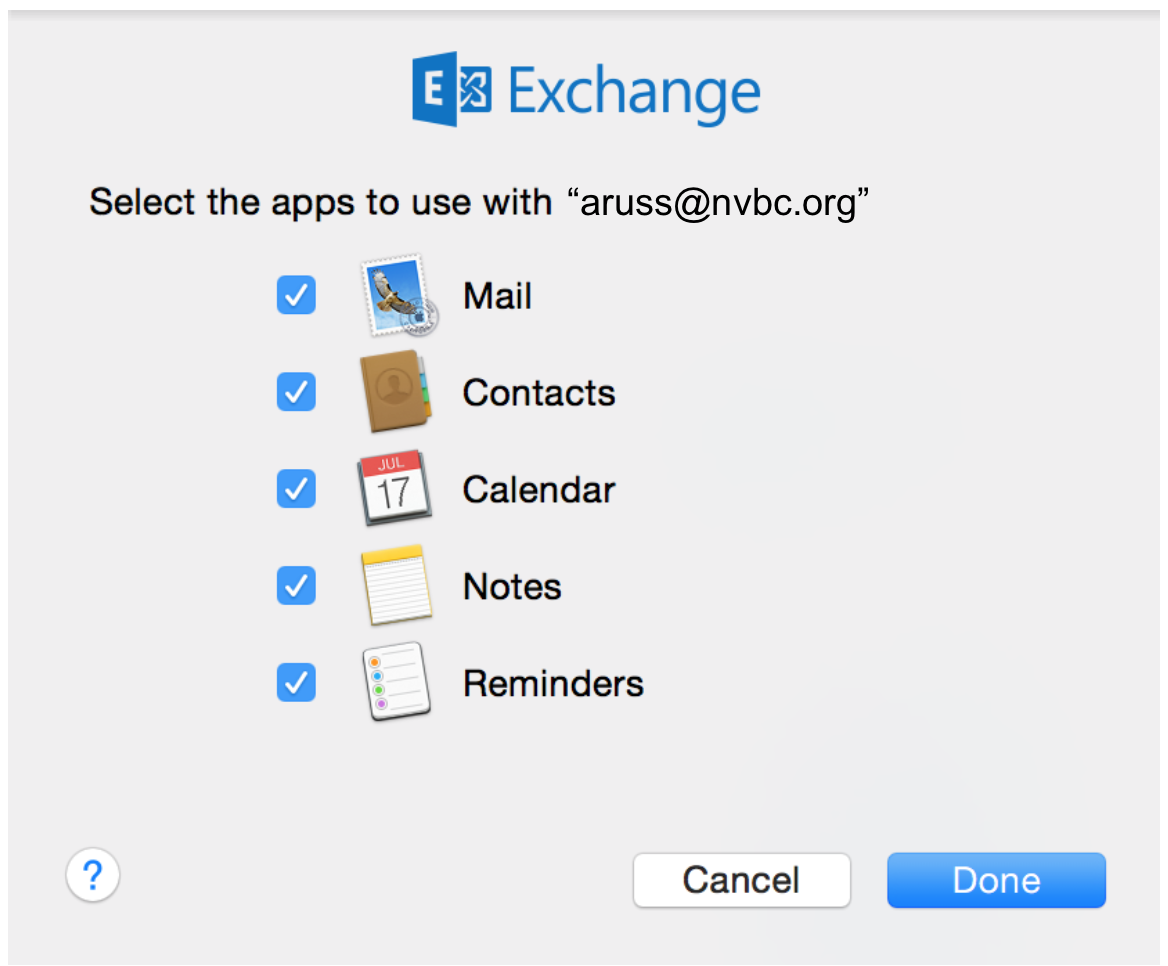
- Finished - Items will start downloading from Office 365 into the various Apple programs.
Comments
0 comments
Please sign in to leave a comment.